Google Search Console Crawl Stats: How to Find Technical SEO Problems in 2026
Learn how to use Google Search Console Crawl Stats to find crawl errors, slow responses, wasted crawling, and technical SEO issues.
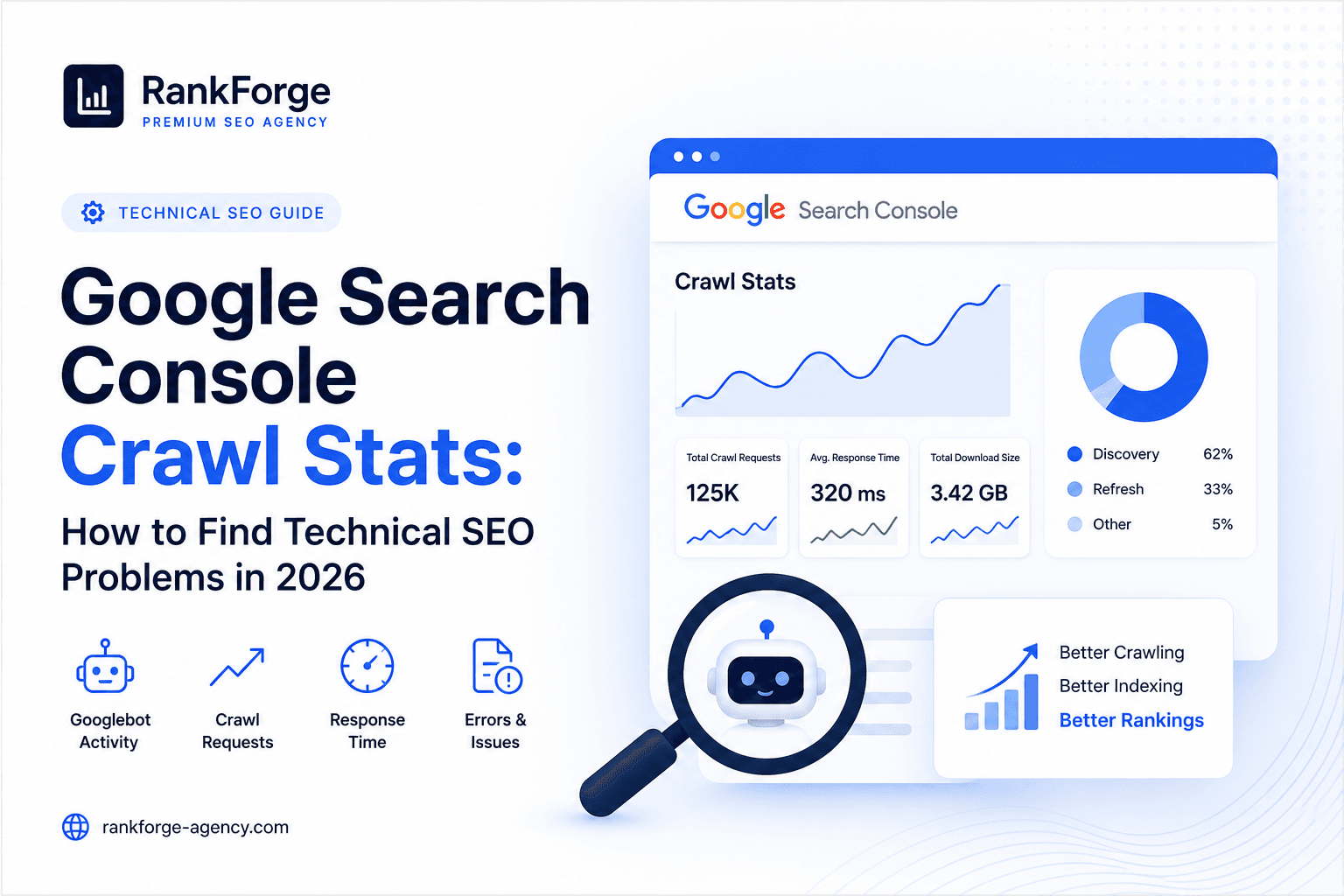
Google Search Console Crawl Stats: How to Find Technical SEO Problems in 2026
Google Search Console can tell you much more than how many clicks and impressions your website receives.
For technical SEO, one of the most useful reports is Crawl Stats.
Crawl Stats helps you understand how Google crawls your website, how often Googlebot requests your URLs, how quickly your server responds, what types of resources are being requested, and whether Google is encountering availability problems.
For larger websites, frequently updated websites, and sites experiencing unexplained indexing or crawling issues, this information can reveal technical problems that standard keyword and ranking reports cannot.
In this guide, we explain how to use Google Search Console Crawl Stats to identify technical SEO problems and what to investigate when the data looks abnormal.
What Is Google Search Console Crawl Stats?
The Crawl Stats report shows Google's crawling history for your website.
According to Google, the report includes information such as:
- Total crawl requests
- Total download size
- Average response time
- Host status
- Crawl responses
- File types
- Crawl purpose
- Googlebot type
The report is designed primarily for advanced users and is especially useful for larger websites.
You can find it in Google Search Console under:
Settings → Crawl stats
Google currently makes the report available for root-level properties, such as a Domain property or a root URL-prefix property.
Learn more about the Crawl Stats report from Google Search Central
score = (business_value * ranking_gap) / implementation_effortWhy Crawl Stats Matters for Technical SEO
A website can look perfectly healthy from the front end while Google encounters problems when crawling it.
For example, users may be able to open your pages normally while Googlebot experiences:
- Slow server responses
- Intermittent 5xx errors
- Redirect chains
- Large numbers of unnecessary requests
- Blocked resources
- Poor host availability
- Excessive crawling of low-value URLs
Crawl Stats gives technical SEOs another layer of evidence when investigating these problems.
It should not replace a crawler such as Screaming Frog, log analysis, PageSpeed testing, or Search Console's indexing reports.
Instead, it helps connect those data sources.
1. Check Total Crawl Requests
The first metric to examine is the total number of crawl requests.
This represents the number of requests Google made for URLs and resources on your site during the selected period.
An increase in crawling is not automatically a problem.
A spike could happen because:
- You published many new pages
- Existing pages were updated
- Google discovered a new section
- Your sitemap changed
- A large number of URLs became discoverable
Google distinguishes between Discovery crawling and Refresh crawling.
Discovery refers to URLs Google has not crawled before.
Refresh refers to URLs Google already knows about.
If you recently launched a large content section, an increase in discovery crawling can be expected.
The important question is not:
"Is Google crawling more?"
The better question is:
"What is Google spending its crawl activity on?"
2. Look at Average Response Time
Average response time is one of the most important technical signals in Crawl Stats.
If Googlebot consistently receives slow responses from your server, investigate the underlying cause.
Possible causes include:
- Slow server processing
- Database queries
- API dependencies
- Hosting limitations
- Excessive server-side rendering work
- Poor caching
- Infrastructure instability
A slow response does not automatically mean your rankings will fall.
However, persistent server-side performance problems can make crawling less efficient and may indicate broader technical issues.
Compare the Crawl Stats response-time trend with your Core Web Vitals and server performance data.
For example:
Crawl Stats
→ Slow Googlebot responses
Server monitoring
→ High backend response time
PageSpeed / Core Web Vitals
→ Poor page experience
When multiple sources point to the same problem, the technical diagnosis becomes much stronger.
3. Review Host Status
Google Search Console also provides information about host availability.
This is particularly useful when investigating sudden crawling or indexing changes.
If Google reports host availability problems, investigate:
- DNS resolution
- Server connectivity
- HTTP availability
- Robots.txt availability
- Hosting outages
- CDN configuration
- Firewall rules
- Rate limiting
A temporary problem may resolve itself.
A recurring problem deserves technical investigation.
Do not assume that a drop in organic visibility is always a content or keyword problem.
Sometimes the first question should be:
"Could Google reliably access the website?"
4. Analyze Crawl Responses
Crawl responses show how Google's requests are being answered.
Pay particular attention to patterns involving:
- 2xx responses
- 3xx redirects
- 4xx responses
- 5xx server errors
- Robots.txt-related failures
A small number of non-200 responses can be completely normal.
The problem is when you see a pattern that does not match your website's architecture.
For example, if a website has recently launched a new URL structure and Googlebot suddenly encounters a large number of redirects or server errors, investigate the deployment.
Look for:
- Incorrect redirects
- Redirect chains
- Redirect loops
- Broken internal links
- Deleted URLs still referenced internally
- Server configuration errors
- Incorrect canonical implementation
Google counts individual requests in its Crawl Stats data, including requests within redirect chains.
That makes this report useful when validating large technical migrations.
5. Understand Crawl Purpose: Discovery vs. Refresh
One of the most useful distinctions in Crawl Stats is crawl purpose.
Google identifies requests as either:
Discovery
Google is crawling a URL it has not crawled before.
Refresh
Google is recrawling a URL it already knows.
This distinction can help you understand how Google is interacting with your website.
For example, if you launch 100 new service pages, you would expect discovery activity to increase.
If you regularly update important pages but see very little refresh activity, investigate whether Google has enough signals to discover those updates.
That does not mean you should try to force Google to crawl every page more frequently.
Instead, focus on:
- Strong internal linking
- Accurate XML sitemaps
- Clear site architecture
- Updated important content
- Avoiding unnecessary URL variations
6. Check Which File Types Google Is Crawling
Crawl Stats also groups requests by file type.
Google may request:
- HTML
- Images
- Video
- JavaScript
- CSS
- PDFs
- XML
- Other resources
This can reveal unexpected crawl patterns.
For example, if a website's crawl activity contains an unusually large number of requests for low-value resources, investigate why those resources are discoverable and whether they need to be crawlable.
You should not automatically block resources simply because they are being crawled.
Google needs access to important resources to properly render and understand pages.
The goal is to identify unnecessary or problematic crawl activity, not to minimize the crawl count at all costs.
7. Check Googlebot Type
Crawl Stats also breaks activity down by Googlebot type.
Depending on the website, you may see activity associated with:
- Googlebot Smartphone
- Googlebot Desktop
- Googlebot Image
- Googlebot Video
- Page resource loads
- AdsBot
- StoreBot
- Other Google crawlers
This can help explain unexpected crawl patterns.
For example, if image requests suddenly increase after publishing a large image-heavy section, Googlebot Image activity may explain the change.
Similarly, page resource loads can help explain why Google is requesting JavaScript, CSS, images, and other resources required to render pages.
8. Compare Crawl Stats With the Page Indexing Report
Crawl Stats should not be analyzed in isolation.
Google Search Console's Page indexing report shows which URLs Google knows about and which URLs were indexed or excluded.
The two reports answer different questions.
Crawl Stats asks:
How is Google crawling my website?
Page Indexing asks:
What is Google doing with the URLs it knows about?
If you see a crawling problem and an indexing problem at the same time, investigate both reports together.
For example:
Crawl Stats
Slow responses or server errors
↓
Page Indexing
Increase in pages that are not indexed
↓
Technical investigation
Server, hosting, redirects, internal links, sitemap, or rendering
Google specifically recommends using URL Inspection when you need to investigate the indexing status of an individual page.
9. Use URL Inspection for Important Pages
Crawl Stats gives you a site-level view.
URL Inspection gives you a page-level view.
If an important service page or article is not appearing in Google, inspect the exact URL.
Check:
- Whether Google knows about the URL
- Whether the URL is indexed
- Whether indexing is allowed
- Canonical information
- Sitemap information
- Last crawl information
- Live test results
Google's URL Inspection tool also lets you test the live version of a page.
Learn how to use Google's URL Inspection tool
This is particularly useful after:
- Publishing a new page
- Changing a canonical
- Fixing a technical issue
- Updating internal links
- Migrating URLs
- Correcting a noindex problem
10. Connect Crawl Stats With Your Technical SEO Audit
Crawl Stats becomes much more valuable when combined with a technical SEO crawler.
For example, a technical SEO workflow can look like this:
Screaming Frog
Find:
- Broken links
- Redirect chains
- Missing metadata
- Canonical issues
- Duplicate URLs
- Indexability problems
Google Search Console
Find:
- Search performance
- Indexing problems
- Crawl behavior
- Sitemap status
- URL-level indexing information
PageSpeed Insights
Evaluate:
- Core Web Vitals
- Loading performance
- Interaction performance
- Layout stability
Server and analytics data
Evaluate:
- Real user behavior
- Server performance
- Traffic patterns
- Conversion impact
When these tools point toward the same technical problem, you have a much stronger basis for prioritizing the fix.
What Should You Actually Fix?
Do not try to optimize every Crawl Stats number.
Instead, prioritize problems that affect important URLs or reveal a recurring technical issue.
A practical priority system is:
| Issue | Priority |
|---|---|
| Recurring 5xx errors | Critical |
| Host availability problems | Critical |
| Important pages inaccessible to Google | Critical |
| Large redirect chains | High |
| Consistently slow server responses | High |
| Important URLs missing from discovery paths | High |
| Excessive low-value crawl activity | Medium |
| Normal resource crawling | Low |
| Small fluctuations in crawl volume | Usually low |
The goal is not to make Google crawl as little as possible.
The goal is to make your website easy for search engines to discover, access, understand, and revisit.
A Simple Google Search Console Crawl Stats Checklist
Use this checklist during your next technical SEO review:
Crawl Activity
- Review total crawl requests
- Compare current activity with previous periods
- Investigate unusual spikes or drops
Server Performance
- Review average response time
- Check host availability
- Investigate recurring server errors
Crawl Responses
- Review 2xx responses
- Investigate unexpected 3xx patterns
- Review 4xx and 5xx activity
Crawl Purpose
- Compare Discovery vs. Refresh
- Check whether important new pages are being discovered
File Types
- Review HTML requests
- Review image requests
- Review JavaScript and CSS activity
- Investigate unexpected resource crawling
Googlebot
- Review Googlebot types
- Investigate unusual crawler activity
Cross-Check
- Compare Crawl Stats with Page Indexing
- Inspect important URLs individually
- Check your XML sitemap
- Run a technical crawl
- Review Core Web Vitals
Final Takeaway
Google Search Console Crawl Stats is not a ranking report.
It is a technical diagnostic tool.
The most useful way to use it is not to chase a perfect crawl number, but to identify patterns that could prevent Google from efficiently accessing and processing your website.
If Google is encountering slow responses, server errors, unnecessary redirects, or discoverability problems, Crawl Stats can help expose those issues.
Combine it with Page Indexing, URL Inspection, your XML sitemap, a technical crawler, and performance data to build a more complete technical SEO picture.
For businesses investing in organic growth, that broader view matters.
Search visibility starts with making sure search engines can reliably access the pages you want them to discover, understand, and rank.
Explore RankForge Technical SEO Services
Explore RankForge SEO Services
Ready to turn this into a roadmap?
RankForge can audit your site, prioritize the best opportunities, and build the growth system behind them.
Request free audit